Type Manager Pro - User Guide
The Complete Type Management Tool for Autodesk Revit
| Version 1.0.0 | Developed by IB-BIM | Itzik Bejarano |
Table of Contents
- Overview
- Installation
- Rename Types
- Smart Filter
- Purge Unused
- Manage Type Parameters
- Keyboard Shortcuts
- Supported Categories
- Invalid Characters
- FAQ
- Support
Overview
Type Manager Pro is a professional Revit add-in with four powerful modules for managing element types in your BIM projects. All modules are accessible as tabs in a single window.
| Module | Description |
|---|---|
| Rename Types | Batch rename with Find/Replace, Prefix, Suffix, and inline editing |
| Smart Filter | Filter and select elements by category, family, parameters, and worksets |
| Purge Unused | Delete unused types, view templates, and filters |
| Manage Type Parameters | View and edit type parameter values in an Excel-like grid |
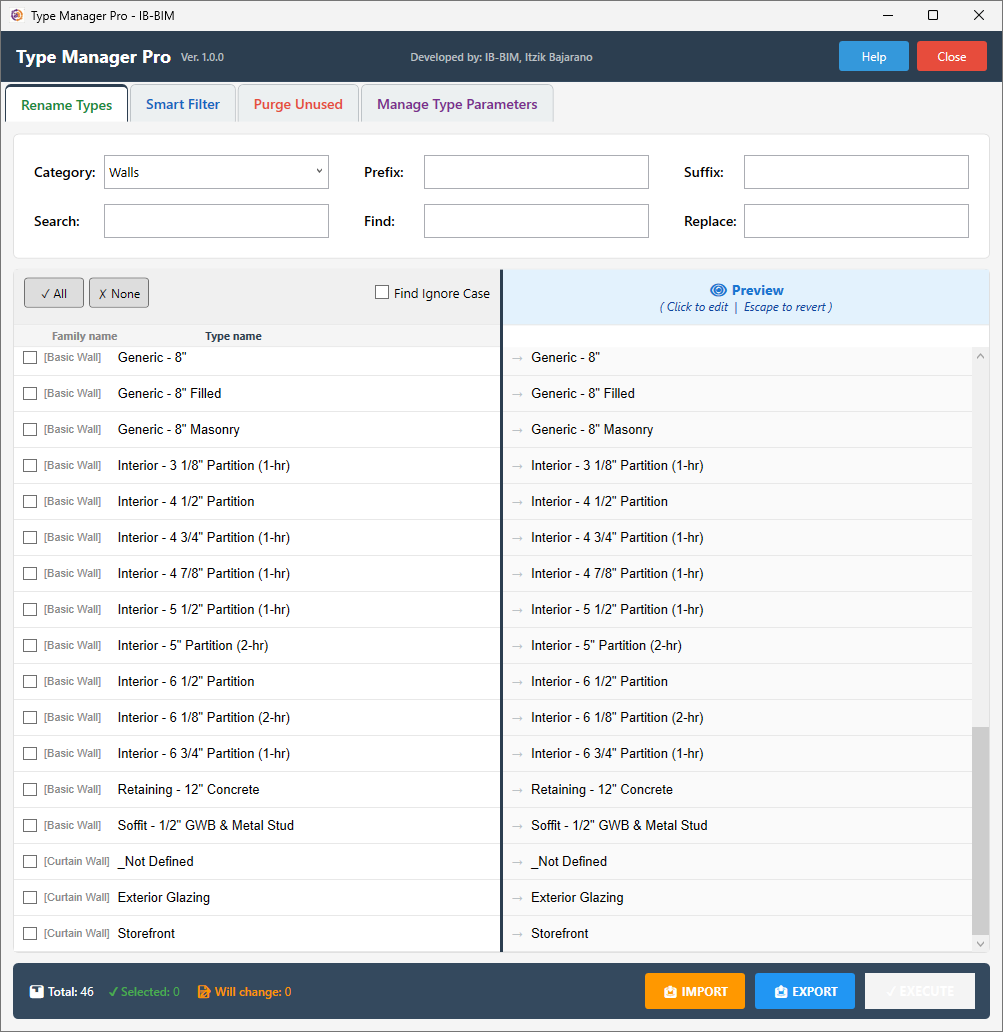 Type Manager Pro main window with four module tabs
Supported Revit Versions
Revit 2023, 2024, 2025, 2026, and 2027.
How to Launch
After installation, find the IB-BIM Tools tab in the Revit ribbon and click Type Manager Pro.
 IB-BIM Tools tab in the Revit ribbon
Installation
- Download Type Manager Pro from the Autodesk App Store
- Run the installer — it automatically detects your installed Revit versions
- Restart Revit — the IB-BIM Tools tab will appear in the ribbon
- Log in with your Autodesk ID — the add-in verifies your subscription
💡 Tip: Make sure you are signed in to your Autodesk account in Revit before launching Type Manager Pro.
Rename Types
Batch rename element types across any category. Use Find/Replace for bulk operations, add Prefix or Suffix, or click directly on any name in the Preview column to edit it manually. Each type is displayed with its Family name in gray for easy identification, and types are sorted by Family → Type Name.
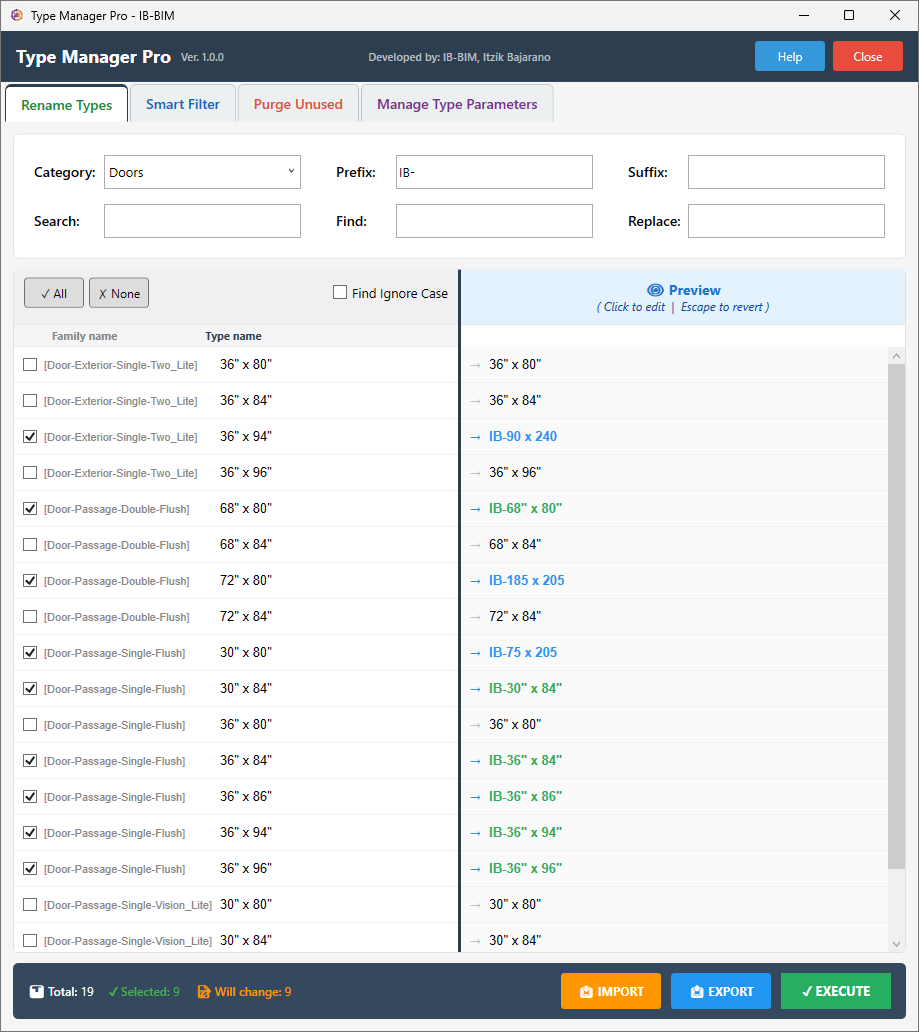 Rename Types — left column shows Family name (gray) and Type name (black),
right column shows live preview with color-coded changes
Rename Types — left column shows Family name (gray) and Type name (black),
right column shows live preview with color-coded changes
Operations
| Operation | Description | Example |
|---|---|---|
| Prefix | Adds text before the name | “IB-“ + “Concrete 10” → “IB-Concrete 10” |
| Suffix | Adds text after the name | “Concrete 10” + “-NEW” → “Concrete 10-NEW” |
| Find/Replace | Replaces matching text | Find “Concrete” Replace “בטון” → “בטון 10” |
| Manual Edit | Click Preview name to type custom name | Click “Concrete 10” → type anything |
How to Rename
- Select a Category from the dropdown — type to search categories by name
- Check the types you want to rename (or click ✓ All)
- Enter your rename operation (Prefix, Suffix, or Find/Replace)
- Review the Preview column — colors indicate the change status
- Click EXECUTE to apply changes
Preview Colors
| Color | Meaning |
|---|---|
| Black | No change |
| Green | Will change (Find/Replace, Prefix, Suffix applied) |
| Blue bold | Manually edited by clicking the Preview name |
| Red | Error (duplicate name within the same family, invalid characters) |
EXECUTE Button Colors
| Color | Meaning |
|---|---|
| Gray | No items selected |
| Green | Valid items ready to rename |
| Red | All selected items have errors |
Family-Aware Features
Type Manager Pro displays the Family name in gray brackets next to each type, making it easy to distinguish types with identical names from different families (e.g., multiple door families with a “36 x 84” type). The Search field filters by both Family name and Type name. Duplicate name validation is per-family — two types with the same name in different families are valid, just like in Revit.
Undo Changes
| Action | How |
|---|---|
| Cancel current edit | Press Escape — reverts to original and unchecks the checkbox |
| Revert one name | Right-click → “↩ Revert to: original name” — unchecks the checkbox |
| Revert multiple | Check several types → right-click → “↩ Revert N selected changed item(s)” |
| Undo after Execute | Press Ctrl+Z in Revit (undoes all changes in one step) |
Export / Import
- Select types with checkboxes → click EXPORT → Excel file with 5 columns
- Edit column E (New Name) in Excel — orange columns are read-only reference
- Click IMPORT → select the Excel file → review in Preview → click EXECUTE
If the Excel file is open in another application, the tool will prompt you to close it and retry (up to 3 attempts). Specific error messages are shown for permission issues, missing folders, and locked files.
Note: If a Search filter is active, only selected items within the filtered list are exported.
Import Matching Priority
| Priority | Method | When Used |
|---|---|---|
| 1st | ID Match | Same project — most reliable |
| 2nd | Name Match | Different project or IDs changed |
💡 Tip: Use Find Ignore Case for case-insensitive Find/Replace operations. You can export from one project and import into another. Type Manager Pro supports all categories including RVT Links — useful for standardizing link type names across projects.
Smart Filter
Smart Filter lets you find and select elements in your model using a powerful 4-level filter tree: Category → Family → Parameter → Value. Select matching elements and highlight them in Revit with a single click.
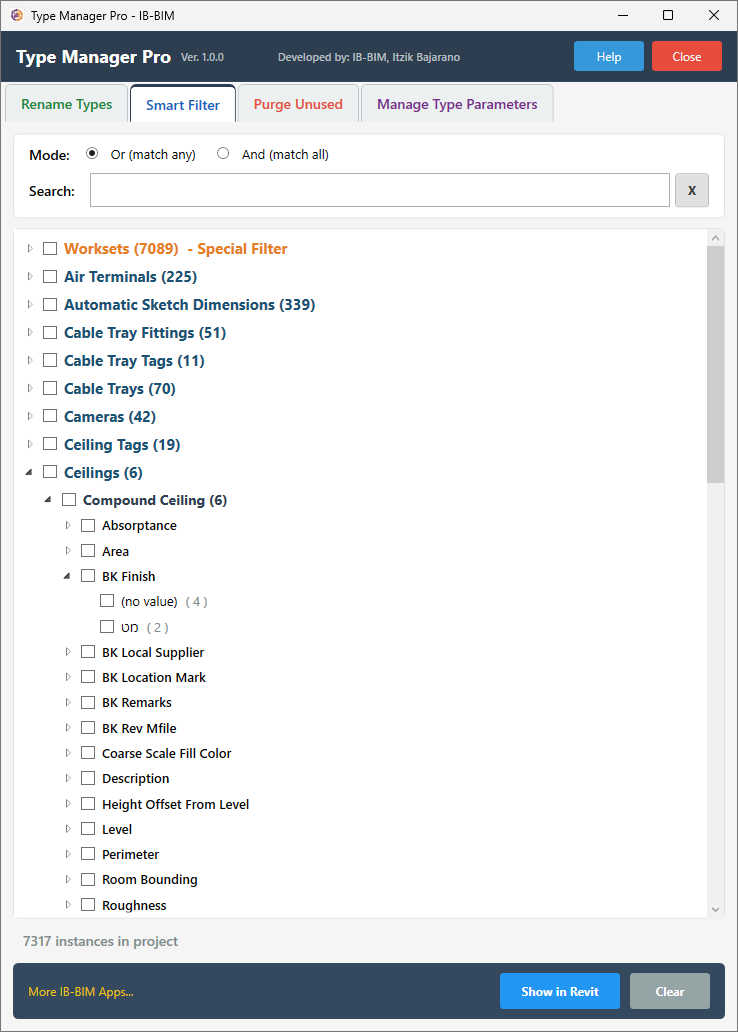 Smart Filter — 4-level tree with lazy loading for fast performance
How to Use
- Expand categories in the tree to see families, then parameters, then values. Each level loads on demand for fast performance.
- Check values to build your filter. Use Or mode (any match) or And mode (all must match) to combine criteria.
- Search across all categories — matching items auto-expand in the tree.
- Click Show in Revit to select all matching elements and close the window.
Special Filters
The Worksets special filter (shown in orange) lets you filter elements by workset — useful for workshared projects.
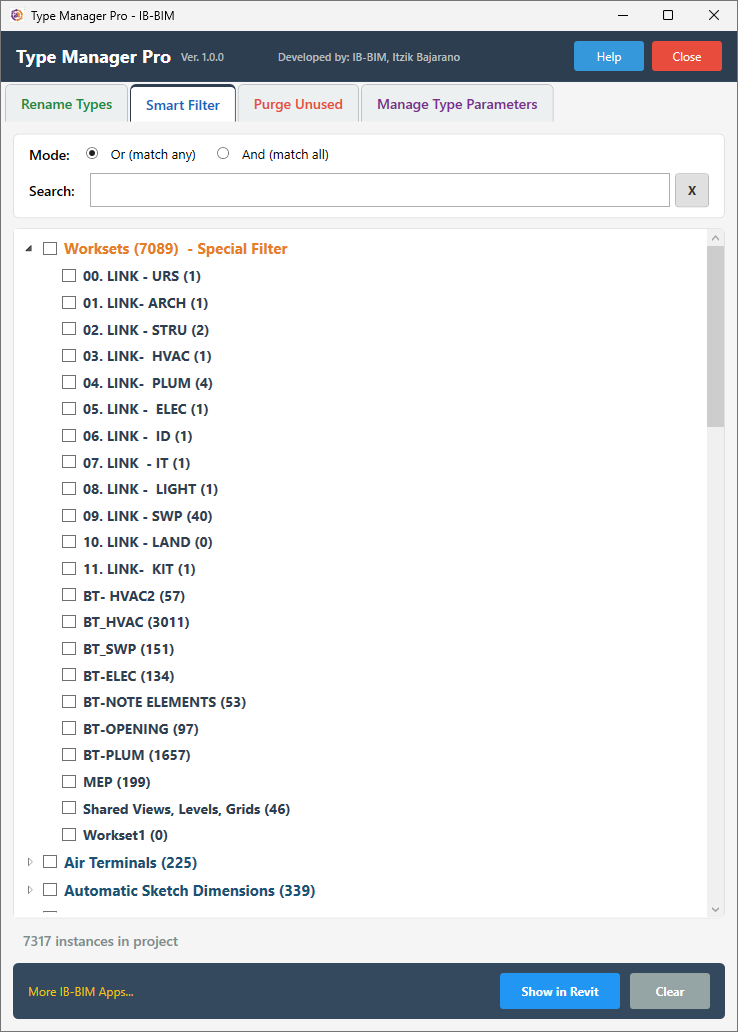
Workset filter shown in orange at the top of the tree
Workset Audit workflow — use the Worksets filter to find elements assigned to the wrong workset:
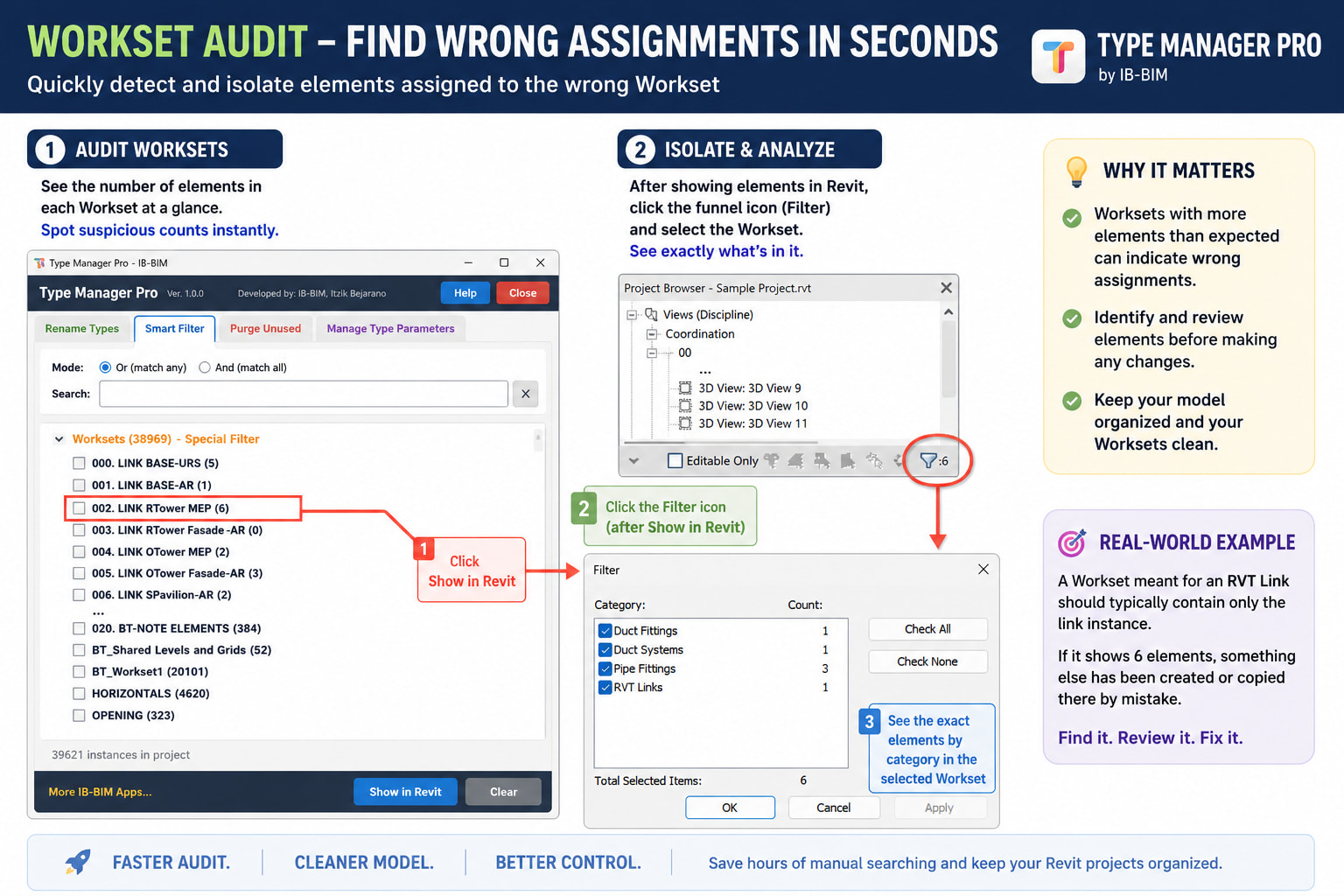
Audit worksets, isolate suspicious elements, and review them by category
💡 Tip: Use Smart Filter to find elements, then switch to Manage Type Parameters to edit their type values — the two modules complement each other.
Purge Unused
Purge Unused targets items that Revit’s built-in Purge Unused command does not handle: unused element types that still have zero placed instances, view templates not applied to any view, and filters not used in any view or template. These items accumulate over time and clutter your project but are invisible to Revit’s native purge.
Common Features
All three operations share the same interface:
- Show Unused Only checkbox — toggle to see only unused items, or uncheck to see all items with their usage status
- Search field — filter items by name
- Select All Unused / Deselect All buttons — quick selection
- Usage column — shows “Unused” in green or usage count in gray (e.g., “6 views”)
- Legend — green dot = Unused, gray dot = In Use
Unused Types
Element types with zero instances placed in the model. For example, wall types that were loaded but never used, or door families with unused size variations. Each type shows its instance count to confirm it is truly unused.
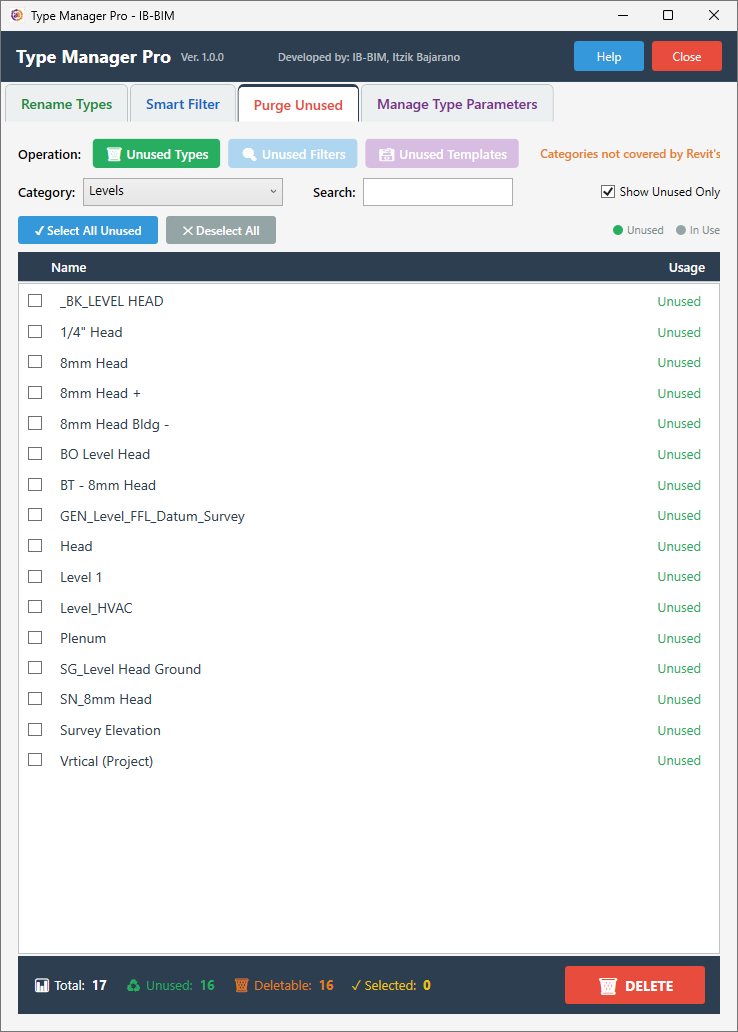 Purge Unused Types — select unused types for deletion
Unused Templates
View templates that are not applied to any view in the project. Over time, projects accumulate templates from copied views or imported standards that are no longer needed. This operation finds and removes them.
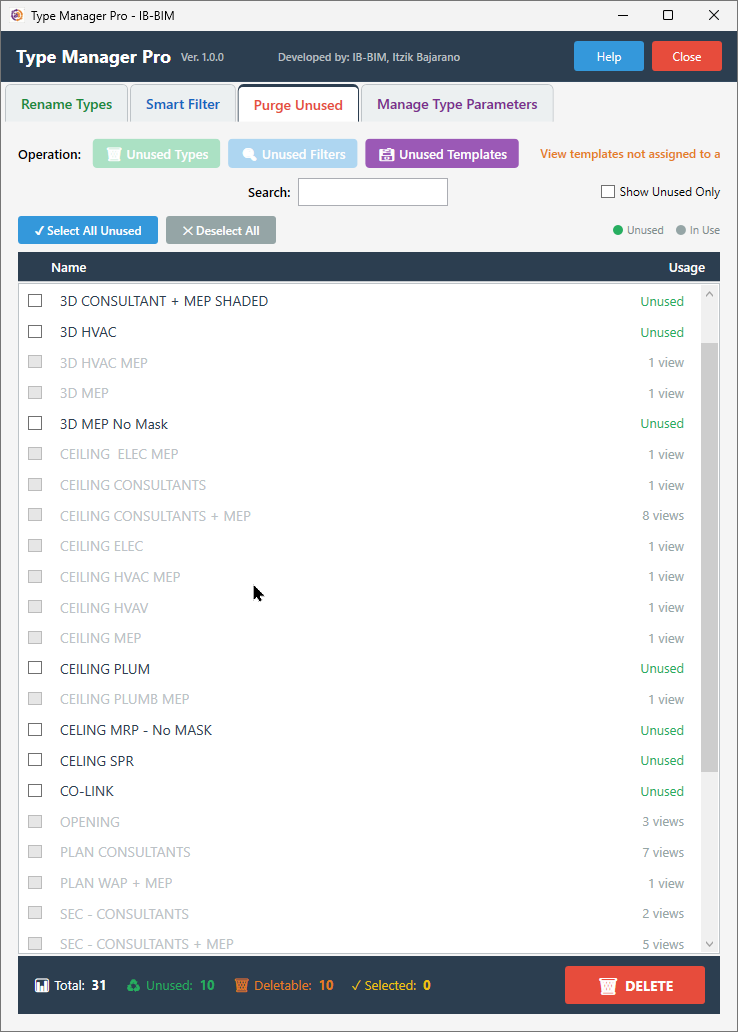 Purge Unused Templates — templates not assigned to any view
Unused Filters
View filters that are not used in any view or view template. Filter rules created during design exploration often remain in the project long after they are needed. This operation identifies and removes them.
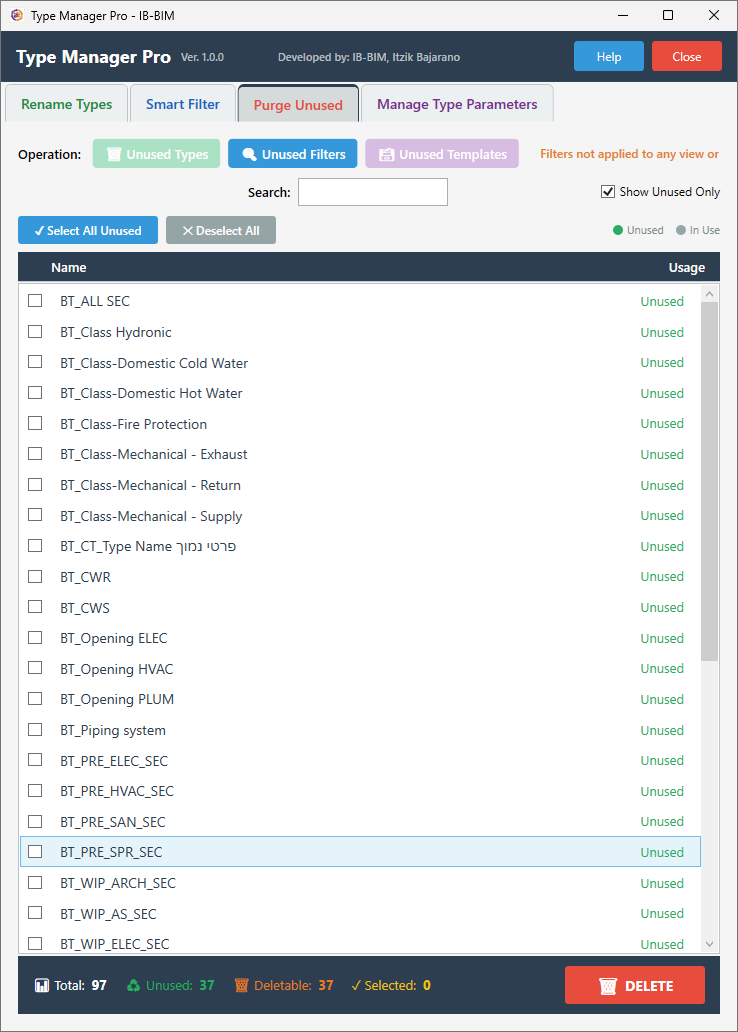 Purge Unused Filters — filters not referenced by any view or template
How to Purge
- Select an operation (Unused Types / Unused Filters / Unused Templates)
- Review the list — each item shows its usage status
- Check items to delete (or click Select All Unused)
- Click DELETE — a confirmation dialog appears
- Confirm to permanently remove the items
⚠️ Warning: Purge operations cannot be undone through Revit’s Undo. Always save your project before purging. A confirmation dialog will appear before deletion.
Manage Type Parameters
View and edit type parameter values across all types in a category — directly in an Excel-like grid. No need to create a Schedule first. Change a Fire Rating across 50 wall types in seconds, export to Excel for review, and import changes back.
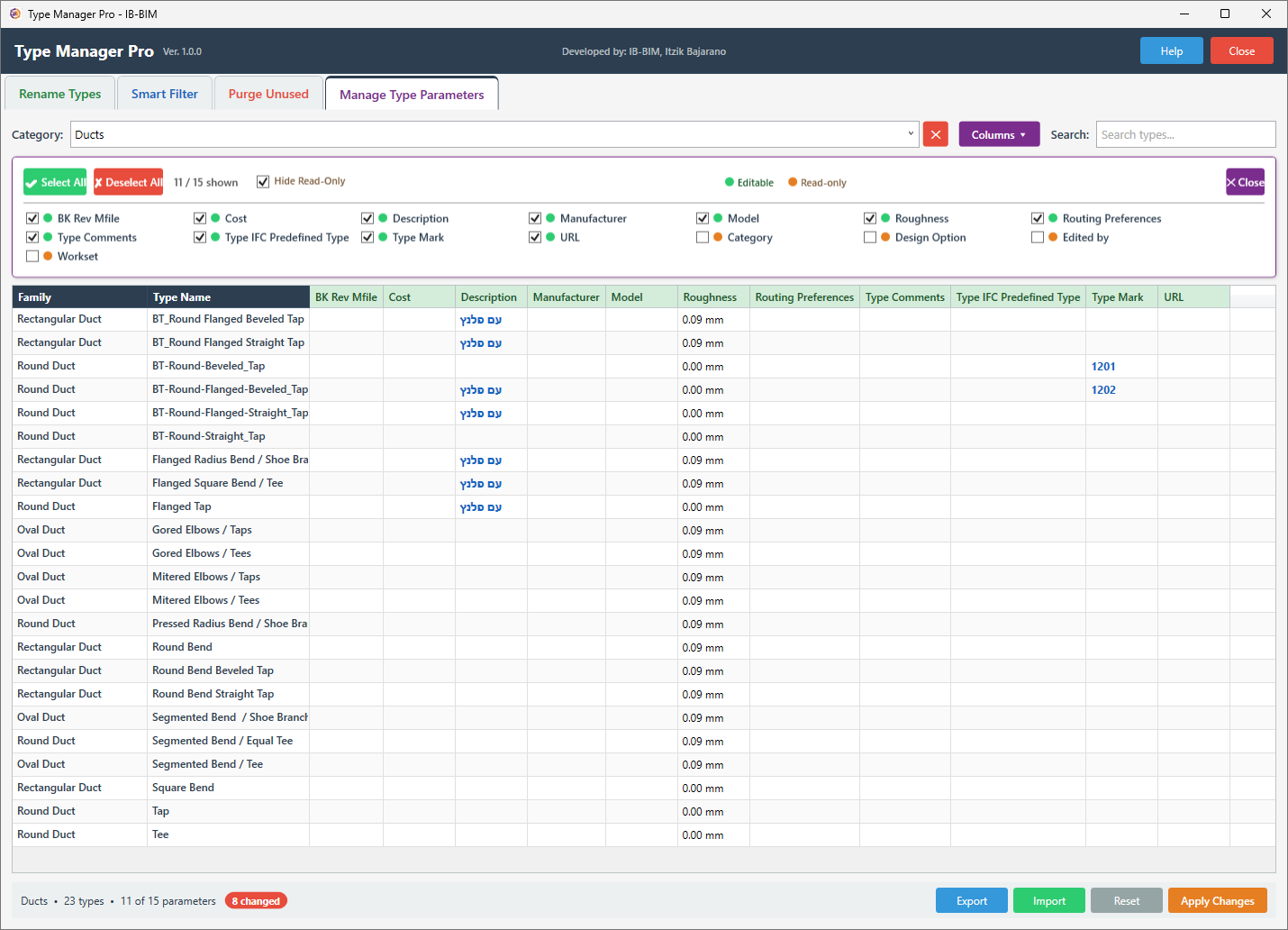 Manage Type Parameters — editable values with green headers, read-only with orange headers.
Changed values appear in blue bold with a tooltip showing the original value.
Manage Type Parameters — editable values with green headers, read-only with orange headers.
Changed values appear in blue bold with a tooltip showing the original value.
How to Use
- Select a Category from the dropdown — type to search categories by name. The grid loads all types with their parameter values.
- Single-click any green-header cell to edit the value directly — a dark frame appears and you can start typing immediately. Press Enter to confirm and move to the cell below (like Excel), or click another cell to continue editing elsewhere.
- Changed values appear in blue bold. Hover to see the original value. A red badge in the footer shows the number of changes.
- Click Apply Changes to write all changes to the Revit model.
Column Colors
| Color | Meaning |
|---|---|
| Dark blue header | Fixed columns (Family, Type Name) — always visible, not editable |
| Green header | Editable parameters — single-click to edit |
| Orange header | Read-only parameters — formula-driven or system values |
Column Picker
Click the purple Columns ▾ button to choose which parameters to display. The picker shows all available parameters with colored dots (green = editable, orange = read-only). Use the controls to manage visibility:
- Select All / Deselect All — quick toggle for all columns
- Hide Read-Only checkbox — instantly hides all orange (read-only) columns, keeping only the editable parameters visible
- Individual checkboxes — toggle specific parameters on/off
Hidden columns are also excluded from Excel export.
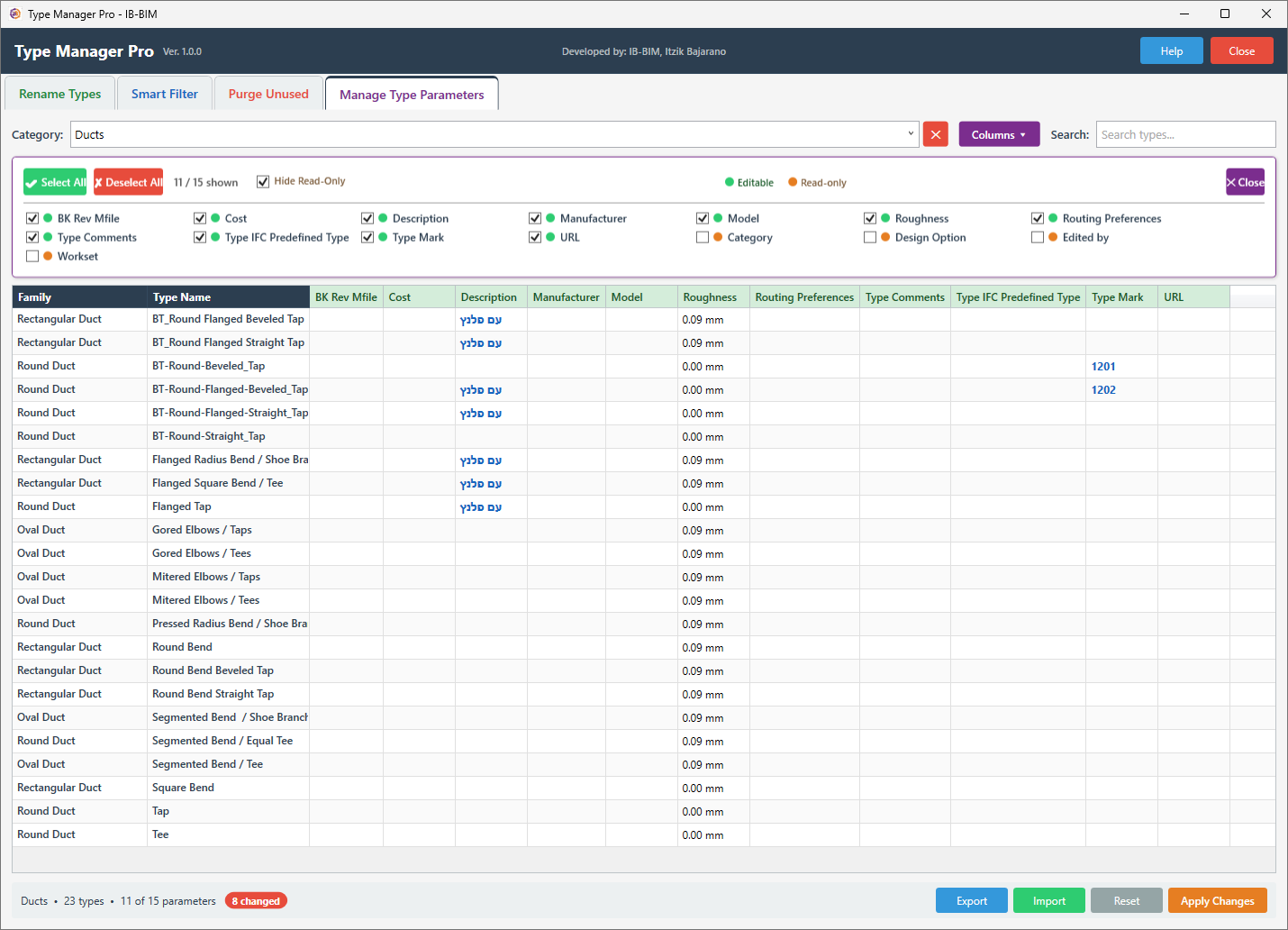 Column picker — green dots = editable, orange dots = read-only.
Hide Read-Only checkbox removes all non-editable columns at once.
Column picker — green dots = editable, orange dots = read-only.
Hide Read-Only checkbox removes all non-editable columns at once.
Copy, Paste & Delete
Type Manager Pro supports Excel-like keyboard operations on selected cells:
| Action | Shortcut | Behavior |
|---|---|---|
| Copy | Ctrl+C | Copies selected cells as tab-separated text (paste into Excel or Notepad) |
| Paste single | Ctrl+V | One value in clipboard + multiple cells selected → pastes to ALL selected cells |
| Paste block | Ctrl+V | Block from Excel → values fill down and right from the anchor cell |
| Delete | Delete | Clears all selected editable cells to empty |
💡 Tip: Copy a value from one cell, select 20 cells in the same column, and Ctrl+V — all 20 cells get the same value. Great for setting Fire Rating, Cost, or Material across many types at once. After any change (manual edit, paste, or delete), changed cells appear in blue bold with a tooltip showing the original value. You can right-click any changed cell to revert it, or use the Reset button to undo all changes before applying.
Undo Changes
| Action | How |
|---|---|
| Revert one cell | Right-click the changed cell → “↩ Revert to: original value” |
| Revert entire row | Right-click on Family or Type Name → “↩ Revert all N changed parameter(s)” |
| Revert selected cells | Select multiple changed cells → right-click → “↩ Revert N selected cell(s)” |
| Revert selected rows | Select cells across rows → right-click → “↩ Revert all changes in N selected row(s)” |
| Reset all | Click the Reset button in the footer |
Export / Import Excel
- Click Export → choose a location. An Excel file is created with all visible columns.
- Edit values in Excel — modify only the green (editable) columns. Instructions are included in the file.
- Click Import → select the Excel file. Changes load into the grid (not directly to Revit).
- Review imported changes (shown in blue bold), then click Apply Changes to write to the Revit model.
If the file is locked by another application, the tool will prompt you to close it and retry (up to 3 attempts).
The Excel file includes:
- Row 1: Source file name and export date
- Row 2: Column headers (orange = read-only, green = editable)
- Row 3+: Data rows with Type ID for reliable matching on import
- Instructions in a separate column on the right
Import Safety Features
| Feature | Description |
|---|---|
| Source file check | Warns if the Excel was exported from a different project |
| ID matching | Primary match by Type ID, fallback to Family + Type Name |
| Grid-only import | Changes go into the grid first — review before applying to Revit |
| File lock retry | If Excel is open, prompts to close and retry (3 attempts) |
Search
The Search field works in two modes:
- Before selecting a category: filters the category dropdown list
- After selecting a category: filters types by name or family in the grid
📝 Note: Only Type parameters are shown. Instance parameters (like element dimensions) vary per placed element and are not included.
Keyboard Shortcuts
| Shortcut | Module | Action |
|---|---|---|
| Escape | Rename | Cancel edit, revert to original, uncheck checkbox |
| Enter | Rename | Confirm edit and move focus away |
| Enter | Parameters | Confirm edit and move to cell below (like Excel) |
| Ctrl+C | Parameters | Copy selected cells to clipboard |
| Ctrl+V | Parameters | Paste clipboard into selected cells |
| Delete | Parameters | Clear selected editable cells |
| Ctrl+Z | Rename (after Execute) | Undo all renames in Revit |
| Ctrl+Z | Parameters (after Apply) | Undo all parameter changes in Revit |
| Right-click | Rename / Parameters | Revert to original value |
Supported Categories
Type Manager Pro supports all categories that have types in your project, including:
Standard Categories
Walls, Doors, Windows, Floors, Ceilings, Roofs, Stairs, Railings, Ramps, Curtain Panels, Curtain Wall Mullions, Generic Models
Structural
Structural Framing, Structural Columns, Structural Foundations
MEP
Pipes, Ducts, Cable Trays, Conduits, Pipe Fittings, Duct Fittings, Duct Accessories, Electrical Equipment, Mechanical Equipment, Plumbing Fixtures, Sprinklers, Air Terminals
View Types
Section Types, Floor Plan Types, Ceiling Plan Types, Elevation Types, 3D View Types, Drafting View Types, Detail View Types, Area Plan Types
Other
Grids, Levels, RVT Links, and 180+ additional categories automatically detected from your project.
Note: The Rename module renames Types (not instances). The Manage Type Parameters module edits Type parameter values (not Instance parameters).
Invalid Characters
The following characters cannot be used in Revit type names:
| Character | Description |
|---|---|
\ |
Backslash |
\| |
Pipe |
: |
Colon |
{ } |
Curly brackets |
[ ] |
Square brackets |
; |
Semicolon |
< > |
Angle brackets |
? |
Question mark |
` |
Backtick |
Allowed: " (inches), _ - . ' # @ & + = ~
and all Unicode characters (Hebrew, Arabic, etc.)
FAQ
Q: Can I rename types in a workshared model? A: Yes. The tool automatically checks out elements before renaming. Types owned by other users are skipped with a notification.
Q: Does Undo work after Execute in Rename? A: Yes. All renames in a single Execute are wrapped in one Revit Transaction. Ctrl+Z undoes everything at once.
Q: Does Undo work after Apply Changes in Manage Parameters? A: Yes. All parameter changes are applied in a single Transaction and can be undone with Ctrl+Z.
Q: Can I import an Excel file from a different project? A: Yes. If IDs don’t match, the system falls back to matching by Category + Family + Name.
Q: Why are some parameter columns orange (not editable)? A: Orange columns are read-only in Revit — they may be formula-driven, system parameters, or built-in values that Revit does not allow to be modified.
Q: Can I paste values from Excel into the parameter grid? A: Yes. Copy cells in Excel → select the target cell(s) in Type Manager Pro → Ctrl+V. Single value pastes to all selected cells. Block paste fills down and right.
Q: Can I delete values from multiple cells at once? A: Yes. Select multiple cells and press the Delete key. Only editable (green-header) cells will be cleared.
Q: Why do some types in Rename show the same name? A: Types from different families can have identical names (e.g., multiple door families with “36 x 84”). The Family name in gray brackets helps identify which is which. The Search field also searches by Family name.
Q: Why can’t I see Instance parameters in Manage Type Parameters? A: The module shows only Type parameters. Instance parameters vary per element and require a different editing approach (use Schedules or Smart Filter + element properties).
Q: What happens if I try to export and the file is already open? A: The tool detects the locked file and shows a dialog asking you to close it. You get 3 retry attempts before the export is cancelled.
Q: What Revit versions are supported? A: Revit 2023, 2024, 2025, 2026, and 2027.
Q: Can I use Smart Filter to find elements by parameter value? A: Yes. Expand Category → Family → Parameter → check specific values. Use Or/And mode to combine criteria across categories.
Q: Where are log files stored?
A: Log files are stored in %LOCALAPPDATA%\IB-BIM\TypeManagerPro\Logs\.
These can be shared with support if you encounter issues.
Support
- Email: itzikb.bim@gmail.com
- Website: https://itzikb49.github.io
- App Store: Autodesk App Store
- YouTube: Video Tutorial
- Help: Click the Help button in the application
If you enjoy Type Manager Pro, please leave a review on the Autodesk App Store — it helps other BIM professionals discover the tool!
| *Type Manager Pro v1.0.0 | © 2026 IB-BIM, Itzik Bejarano | Privacy Policy* |